
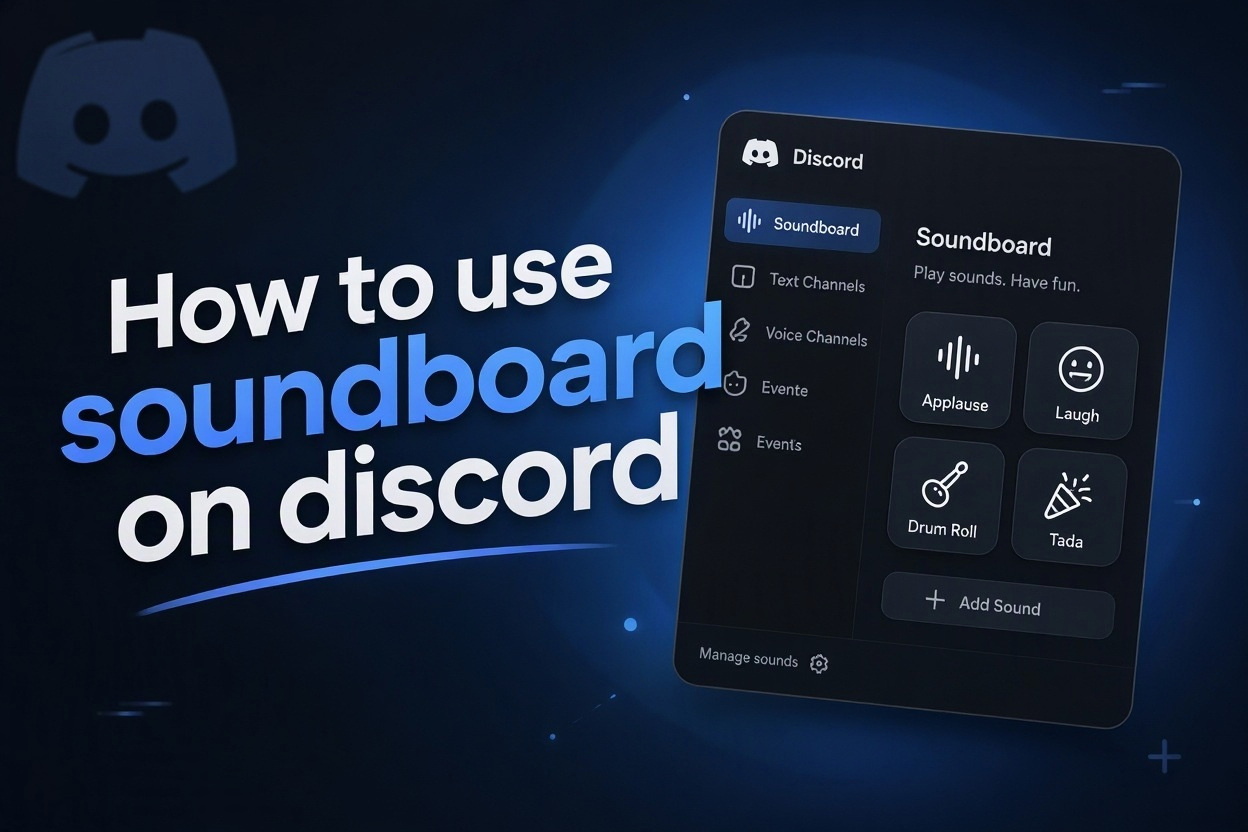
If you are wondering how to use soundboard on Discord, the feature is simpler than it first appears. A soundboard lets you play short audio clips in a voice channel, adding reactions, jokes, atmosphere, and quick sound effects without interrupting the conversation. It can make game nights, community events, and casual chats feel more lively when everyone uses it respectfully.
Discord’s built-in soundboard is designed for brief, recognizable sounds rather than long music tracks. Depending on the server’s settings and your permissions, you may be able to use existing sounds, upload approved clips, or help organize a collection for members. The controls are usually available only while you are connected to a voice channel.
This guide explains what the Discord soundboard does, how to access it, how to play sounds appropriately, and what to do when it is unavailable. You will also find practical etiquette tips, common mistakes to avoid, and answers to frequent questions so you can use the feature confidently.
A Discord soundboard is a set of short audio clips that can be played into a voice channel. Instead of speaking, you select a sound effect from the server’s collection and Discord plays it for people currently listening in that channel. Sounds may include applause, a drumroll, a funny reaction, or a short custom clip.
The feature works best as a quick response tool. A well-timed sound can acknowledge a win, add humor after a surprising moment, or create a familiar tradition for a group. Because clips are short, they should support the conversation rather than become the conversation itself.
Server owners and moderators can decide who may manage sounds. They may allow only certain roles to upload or edit clips, while regular members can simply play the approved collection. This helps keep the soundboard relevant, safe, and easy to browse.
Availability can vary by device, Discord version, channel type, permissions, and server configuration. If you do not see the soundboard icon after joining a voice channel, it does not automatically mean that anything is wrong with your account.
It is also useful to separate Discord’s soundboard from third-party audio tools. The built-in feature is made for short server-based reactions, while external tools may route broader audio through a microphone setup. For everyday use, the built-in option is usually the easier and less disruptive choice.
How Do You Use Soundboard On Discord?
1. Join A Voice Channel
Start by entering a voice channel in the server where you want to play a sound. The soundboard is connected to live voice conversations, so it normally will not appear in the same way when you are only reading text channels. Check that you are connected and can hear the channel before looking for the controls.
2. Find The Soundboard Control
On desktop, look around the voice channel controls for the soundboard button, often represented by a musical or audio-related icon. On mobile, open the voice channel controls or menu to locate it. Discord’s layout can change slightly between updates, but the control is usually close to mute, deafen, and other call options.
3. Open The Available Sound Collection
Select the soundboard control to view the clips available in that server. Each server can have its own collection, so a sound you used in one community may not appear in another. Browse the names and icons carefully, especially in larger servers where sounds may be grouped or arranged for quick recognition.
4. Preview A Sound Carefully
If Discord provides a preview option, use it before playing an unfamiliar clip in a busy channel. A name alone may not explain the volume, language, or joke behind a sound. Previewing helps you avoid accidental surprises and lets you choose a clip that actually fits the current moment.
5. Select The Sound At The Right Moment
Choose the clip once, then let it play without repeatedly triggering it. A soundboard works best when its timing feels like a natural reaction. For example, applause after a teammate succeeds or a short suspense cue before an announcement can add energy without making it difficult for others to speak.
6. Watch For Cooldowns And Limits
Discord servers may apply cooldowns, volume settings, or restrictions to prevent sound spam. If a sound does not play immediately, wait rather than clicking it many times. These limits protect the voice channel and make the feature more enjoyable for everyone, particularly during games, meetings, or events with many participants.
7. Return To Normal Conversation
After using a sound, continue the discussion normally and give others space to react. The strongest soundboard use is occasional and purposeful. If the clip becomes louder than the conversation or gets repeated after the joke has passed, it can quickly shift from entertaining to distracting.
Why Is Discord Soundboard Useful?
1. It creates fast reactions when typing would feel slow or when talking over someone would interrupt the flow. A short effect can communicate excitement, surprise, agreement, or playful disappointment in a memorable way.
2. It gives communities a shared identity. Custom sounds based on recurring jokes, event traditions, or recognizable community moments can make members feel more connected without requiring every interaction to be serious.
3. It can help hosts add structure to activities. A short countdown, celebration cue, or transition sound can signal that a round is beginning, a winner has been chosen, or an announcement is about to start.
4. It gives quieter members another way to participate. Someone who does not want to speak often can still react to a game, stream, or conversation with an appropriate sound when the channel culture welcomes it.
5. It reduces the need for complicated audio routing for simple effects. For short clips, the built-in soundboard can be more convenient than configuring a separate application, virtual microphone, or audio source.
Soundboard Etiquette For Discord Voice Chats
- Keep Volume Reasonable: Choose clips that are clear but not painfully loud. A sound that overwhelms headphones or makes others lower their volume can spoil the experience, even if the clip itself is funny.
- Use Short Relevant Clips: The best sounds are brief and easy to understand in context. Avoid long recordings, confusing audio, or clips that delay an active discussion, especially when members are coordinating a game or event.
- Respect Channel Purpose: A casual hangout channel may welcome playful reactions, while a study group, support space, or staff meeting may need silence. Match your soundboard use to the channel’s stated purpose and current mood.
- Avoid Repeating The Same Sound: A clip usually gets its biggest reaction the first time. Replaying it several times can frustrate listeners and make it harder for people to communicate, so save it for a genuinely fitting moment.
- Choose Inclusive Audio: Do not use sounds that target, embarrass, threaten, or exclude people. A community soundboard should help members feel included, and moderators should remove clips that create discomfort or conflict.
- Follow Moderator Guidance: Server rules and moderator requests take priority over personal preferences. If a moderator asks members to stop using sounds during an event or changes permissions, cooperate quickly to keep the voice channel welcoming.
Common Discord Soundboard Problems And Fixes
1. The Soundboard Icon Is Missing
First, confirm that you are actually connected to a supported voice channel and that Discord is updated. Then check whether the server has enabled soundboard access for your role. If the feature appears in other servers but not this one, the likely cause is server setup or permissions rather than your device.
2. A Sound Will Not Play
A clip may fail to play because of a cooldown, a temporary connection issue, or a server restriction. Wait a moment, check your network connection, and try a different approved sound once. Repeatedly selecting the same clip usually does not solve the issue and may create unnecessary confusion in the channel.
3. Other Members Cannot Hear The Clip
Ask whether other audio from Discord is working for them and whether they have lowered the application volume. The problem can also be local to one listener’s output settings. If nobody hears the sound, leave and rejoin the voice channel, then test a different clip after the connection refreshes.
4. You Cannot Upload Or Edit Sounds
Uploading, renaming, deleting, or managing soundboard clips is often restricted to server owners, administrators, or designated roles. Review the server’s permission rules or contact a moderator with a clear request. Do not assume that access is broken simply because another member has management options that you do not see.
5. The Audio Is Too Loud Or Unclear
If a custom sound is harsh, distorted, or much louder than voices, stop using it and let a moderator know. Good soundboard clips should be short, clean, and balanced. A clip that sounds fine in isolation can still be uncomfortable in a live channel when people are wearing headphones.
6. The Soundboard Is Becoming Spam
When too many sounds interrupt conversation, the practical fix is to pause use and return to voice chat. Moderators can set clearer expectations, reduce access, or establish a designated channel for playful audio. Members can help by using sounds only when they add a reaction that words alone would not express as well.
Learning how to use soundboard on Discord comes down to joining a voice channel, finding the soundboard control, and selecting a short clip that suits the moment. The feature is easy to use once it is available, but permissions and server settings can affect what you see.
The best soundboard habits are simple: keep clips brief, use them sparingly, respect channel rules, and avoid anything that makes it harder for others to talk. Good timing and reasonable volume matter more than having a large collection of sounds.
If the feature is missing or a clip fails to play, check your voice connection, app version, server permissions, and any cooldowns. With those basics covered, the soundboard can become a fun, low-effort way to make Discord conversations more expressive.
FAQs About Discord Soundboard
Can Everyone Use The Discord Soundboard?
Not always. A server owner or moderator can control which roles may use or manage soundboard sounds. You also need to be connected to the relevant voice channel. If the option is unavailable, check the server rules or ask a moderator whether your role has permission.
Can I Use The Soundboard On Mobile?
Discord may provide soundboard controls on supported mobile versions, although the location can differ from the desktop layout. Join a voice channel and open the available call controls or menu. Keeping the app updated helps ensure that the latest supported features and interface options are available.
Why Can I See Sounds But Not Upload Them?
Playing a sound and managing a soundboard collection are separate permissions. Many servers allow members to use approved clips while limiting uploads, edits, and deletions to moderators. This prevents unwanted audio from appearing and keeps the collection organized, recognizable, and appropriate for the community.
Can I Play Full Songs Through Discord Soundboard?
The soundboard is best for short audio reactions rather than full songs or long recordings. Long audio can interrupt conversations, create moderation problems, and distract listeners. If your server allows music-related activities, follow its rules and use a dedicated method designed for longer listening sessions.
What Should I Do If A Sound Is Offensive?
Do not repeat the sound or argue in the voice channel if it is upsetting people. Use the server’s normal reporting or moderation process and provide enough context for a moderator to identify the clip. Moderators can remove sounds and adjust permissions when a collection needs better oversight.
How Often Should I Use Sounds In A Voice Chat?
There is no fixed number, but occasional use is usually best. Play a sound when it adds a clear reaction, supports an event, or fits a shared joke. If people are trying to speak, coordinate, learn, or handle an important topic, pause the soundboard and prioritize clear conversation.