
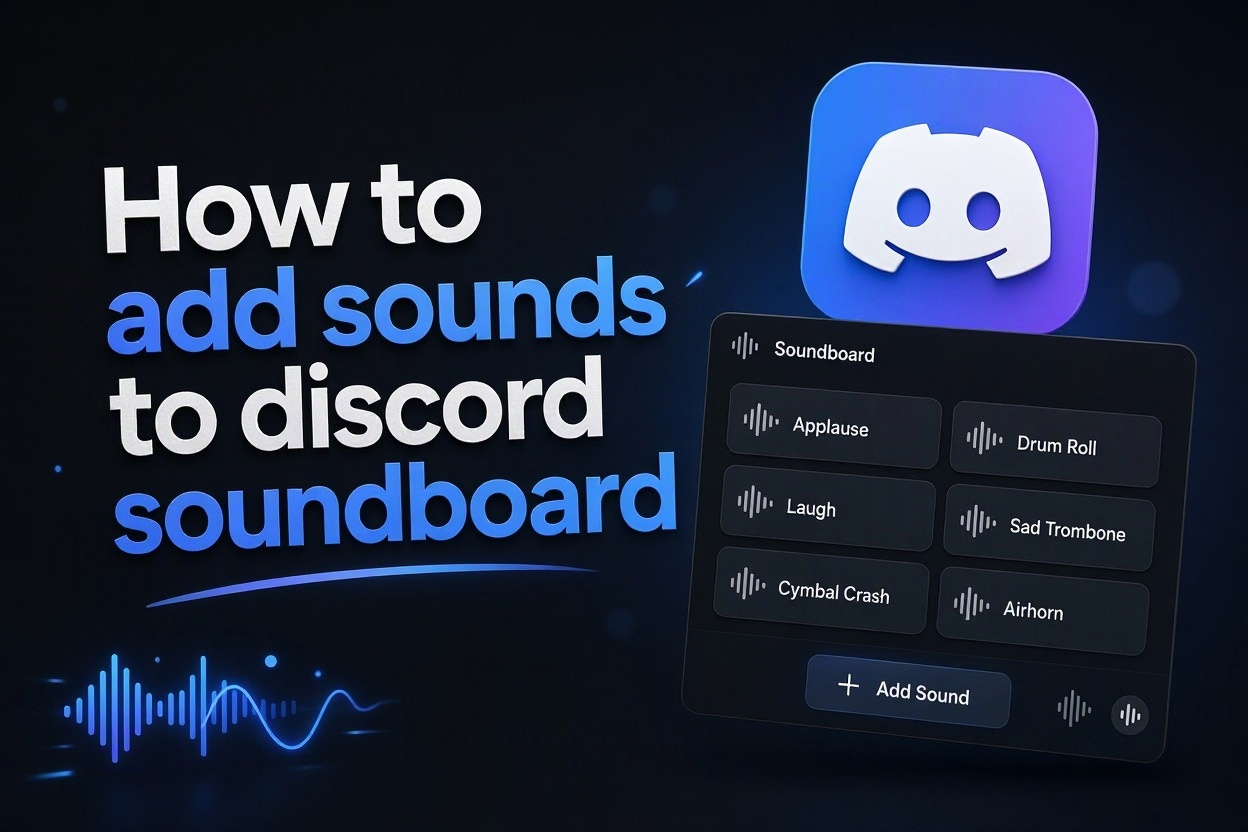
Adding sounds to a Discord soundboard is a simple way to make voice chats more expressive, funny, and memorable. Whether you run a gaming server, a study group, or a community space, well-chosen clips can support reactions without interrupting the conversation.
Discord soundboard sounds are short audio clips that members can play during voice calls. They work best when they are clear, brief, and appropriate for the people in the channel, giving everyone an easy way to react in the moment.
This guide explains how to prepare audio, upload it to a server soundboard, manage permissions, solve common problems, and build a collection that remains useful rather than distracting.
Before uploading anything, decide what purpose each sound should serve. A quick applause, a game alert, or a light reaction clip is easier for members to recognize than a long recording with several unrelated moments.
Soundboards are most enjoyable when they add timing and personality to a conversation. They should complement people speaking, not make it difficult for others to hear instructions, teammates, or friends.
Server owners should also think about audience expectations. A sound that is amusing in a private gaming group may be confusing, offensive, or too loud in a public community with many different members.
Keeping a small, organized starter collection makes moderation easier. You can always add more sounds after learning which clips members actually use and which ones are repeatedly ignored.
The technical side matters too. Clean audio, sensible file names, and a consistent volume level make the Discord soundboard feel deliberate instead of messy.
How Do You Add Sounds To Discord Soundboard
Open The Correct Server
Open Discord and select the server where you have permission to manage soundboard content. Soundboards belong to individual servers, so uploading a clip in one community does not automatically make it available in another. Check that you are editing the intended server before continuing.
Enter The Soundboard Settings
Find the server settings area and look for the soundboard management option. The wording and layout can vary slightly between desktop, browser, and mobile versions, but the goal is the same: reach the page where existing soundboard clips can be reviewed and changed.
Choose A Short Audio File
Select an audio clip that is brief, easy to identify, and suitable for live conversation. Trim unnecessary silence before uploading so the sound starts quickly. Short clips are easier to trigger at the right moment and are less likely to overwhelm other people in the voice channel.
Upload The Sound
Use the add or upload control, then choose your prepared file from your device. Discord may ask you to confirm details before saving it. If the file is rejected, review its format, length, size, and audio quality rather than repeatedly uploading the same unsupported version.
Name The Clip Clearly
Give every sound a simple, descriptive name that members can recognize immediately. Names such as Applause, Doorbell, Victory, or Dramatic Pause are more useful than vague labels. Clear names also help moderators identify a sound quickly when someone reports a problem.
Set A Suitable Emoji
Assign an emoji that matches the sound whenever the server interface offers that option. A visual cue helps members scan a growing collection much faster. Choose an obvious emoji instead of an inside joke that only one person understands, especially in larger communities.
Test It In Voice Chat
Join a suitable voice channel and play the new clip once at a normal listening volume. Confirm that it is audible, starts cleanly, and does not contain unexpected language or background noise. Testing also reveals whether the clip is significantly louder than the rest of the collection.
What Makes A Discord Soundboard Sound Useful
1. Keep clips short enough to work as reactions rather than interruptions. A focused sound is easier to understand and less likely to frustrate people who are trying to talk.
2. Use recognizable audio with a clear beginning. Long introductions, quiet openings, and complicated dialogue often miss the moment when someone presses the soundboard button.
3. Match the sound to the server culture. Friendly communities may enjoy playful reactions, while competitive groups may prefer brief tactical alerts or celebratory effects.
4. Choose audio with consistent loudness. A clip that is much louder than voices can startle listeners and quickly lead to complaints or restrictions.
5. Review usage over time. If no one uses a sound, replace it with something clearer or more relevant instead of allowing the board to become crowded.
Why Add Sounds To A Discord Soundboard
- Fast Reactions: A short clip can express surprise, celebration, or agreement without making someone stop what they are doing to type a message.
- Stronger Community Identity: A few shared sounds can create familiar moments and traditions that make regular members feel more connected to the server.
- More Engaging Events: Hosts can use carefully selected cues during game nights, watch parties, quizzes, and community announcements to make sessions feel lively.
- Accessible Expression: Some members find it easier to use a simple audio reaction than to speak immediately, particularly in busy voice channels.
- Clearer Playful Cues: A recognizable alert can signal a win, a transition, or a humorous mistake when everyone already understands what it means.
- Flexible Server Customization: Soundboards let moderators shape the tone of a voice community without requiring complex bots or changing the main conversation setup.
How Can You Manage Discord Soundboard Sounds
Create Simple Naming Rules
Use a predictable naming style for every upload, such as a short action word or a clear category followed by the sound name. Consistent labels reduce duplicate uploads and make the soundboard easier to browse when members are trying to react quickly.
Limit Duplicate Clips
Avoid keeping multiple versions of nearly identical applause, laughter, or alert sounds. Duplicates make the soundboard harder to navigate and create unnecessary moderation work. Keep the cleanest and most popular version, then remove alternatives that do not add a distinct use.
Review Permissions Carefully
Decide who can upload, edit, or use sounds according to the size and purpose of your server. A small friends-only server may allow broad access, while a public community often benefits from limiting management rights to trusted moderators or designated contributors.
Balance Volume Before Uploading
Normalize or adjust clips before adding them so they sit comfortably beside normal voices. Do not rely on listeners to lower their devices every time a sound plays. Consistent volume makes the feature enjoyable and reduces the chance that users mute the channel.
Remove Outdated Material
Review the collection after seasonal events, server changes, or moderation issues. Sounds based on old jokes can lose meaning, and clips that no longer match community standards should be removed. A smaller current library usually performs better than a large forgotten archive.
Respect Copyright And Consent
Use audio you are allowed to share and be cautious with recordings of real people. Do not upload private conversations, personal voice messages, or clips that could embarrass someone. Consent and respectful sourcing help protect both members and the community atmosphere.
Set Expectations For Use
Explain basic soundboard etiquette in your server rules or voice-channel guidance. Members should know not to spam clips, interrupt hosts, or use sounds to target another person. Clear expectations let moderators act consistently if misuse becomes a recurring issue.
Learning how to add sounds to a Discord soundboard starts with choosing brief, clear clips and uploading them to the correct server settings. A descriptive name, fitting emoji, and quick voice-channel test help every new sound work as intended.
The best soundboards are curated rather than crowded. They match the community, maintain reasonable volume, and give members useful reactions without taking over the conversation.
Review your collection regularly, protect permissions, and remove sounds that no longer serve the group. With those habits, a soundboard becomes a simple, enjoyable part of everyday Discord voice chat.
FAQs About Adding Sounds To Discord Soundboard
Can Anyone Add Sounds To A Discord Soundboard?
Not always. The ability to upload or manage soundboard clips depends on server permissions and roles. In many communities, only owners, administrators, or trusted moderators can add sounds. If you cannot find the upload option, ask a server manager whether your role has the necessary permission.
Why Is My Soundboard Upload Not Working?
An upload can fail because the audio file does not meet Discord requirements, is too long, is too large, or has an unsupported format. It can also fail if you lack permission or the server has reached a relevant limit. Try a shorter, cleaner file and confirm your server role.
How Long Should Discord Soundboard Sounds Be?
Short clips are usually the most effective because they work as quick reactions during live conversation. Aim for a recognizable moment with little or no silence at the beginning. Longer audio can be harder to time, may interrupt speakers, and is more likely to become annoying when repeated.
Can I Add My Own Voice To A Discord Soundboard?
Yes, if you record the clip yourself and follow the server rules. Keep the recording clear, brief, and respectful. If another person’s voice is involved, obtain their permission before uploading it. This is especially important in public servers or communities with formal moderation standards.
How Do I Stop People From Spamming Sounds?
Start by setting clear expectations about when soundboard clips are appropriate. Restrict soundboard permissions if necessary, monitor repeated misuse, and apply the same moderation approach you use for other voice-channel disruptions. A small, curated collection also reduces the temptation to spam random or overly loud clips.
Should I Use Soundboard Sounds In Every Voice Channel?
That depends on the channel’s purpose. Social and gaming channels often benefit from playful reactions, while meetings, study sessions, support rooms, and announcement channels may need fewer interruptions. Consider separate channel rules so members know where soundboard use is welcome and where quiet conversation matters more.